
ローカルに保存したHTMLをCefSharpを用いて表示させてみます。この応用でローカルで動くWebアプリが作成できます。
今回は、用意したBoostrapのサンプルHTMLをもとに作成します。
※元ネタは、こちらを参考にしました。
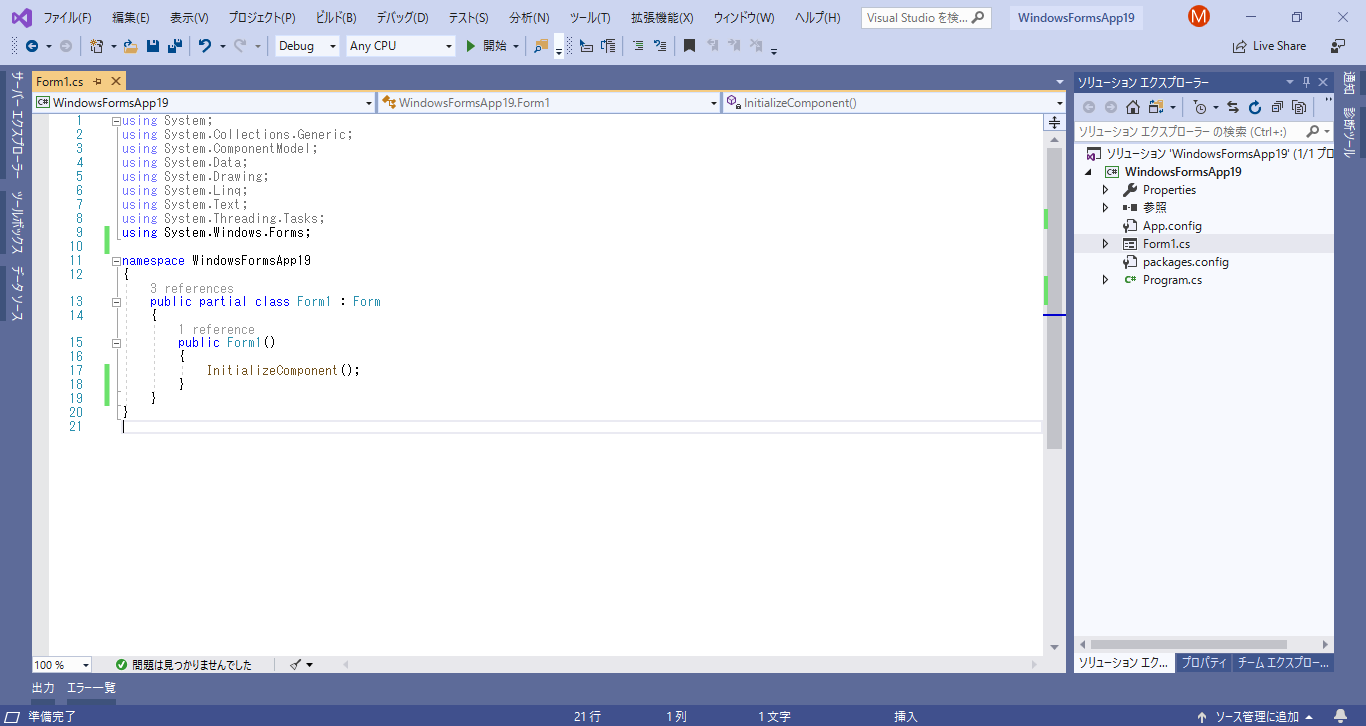
1.これまでの以下1、2をおさらいして、新しくプロジェクトを作成します。
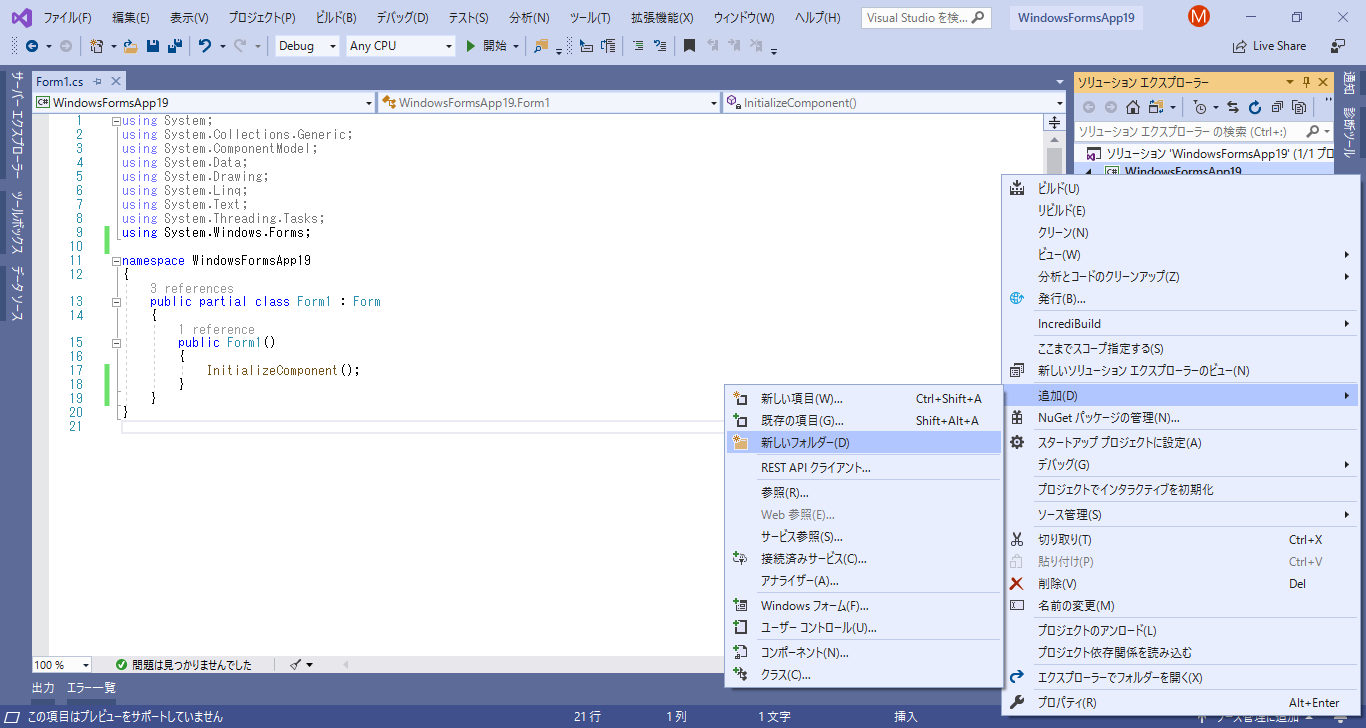
2.プロジェクト内に新しいフォルダを作成します。(右クリックメニュー「追加(D)」-「新しいフォルダ(D)」)
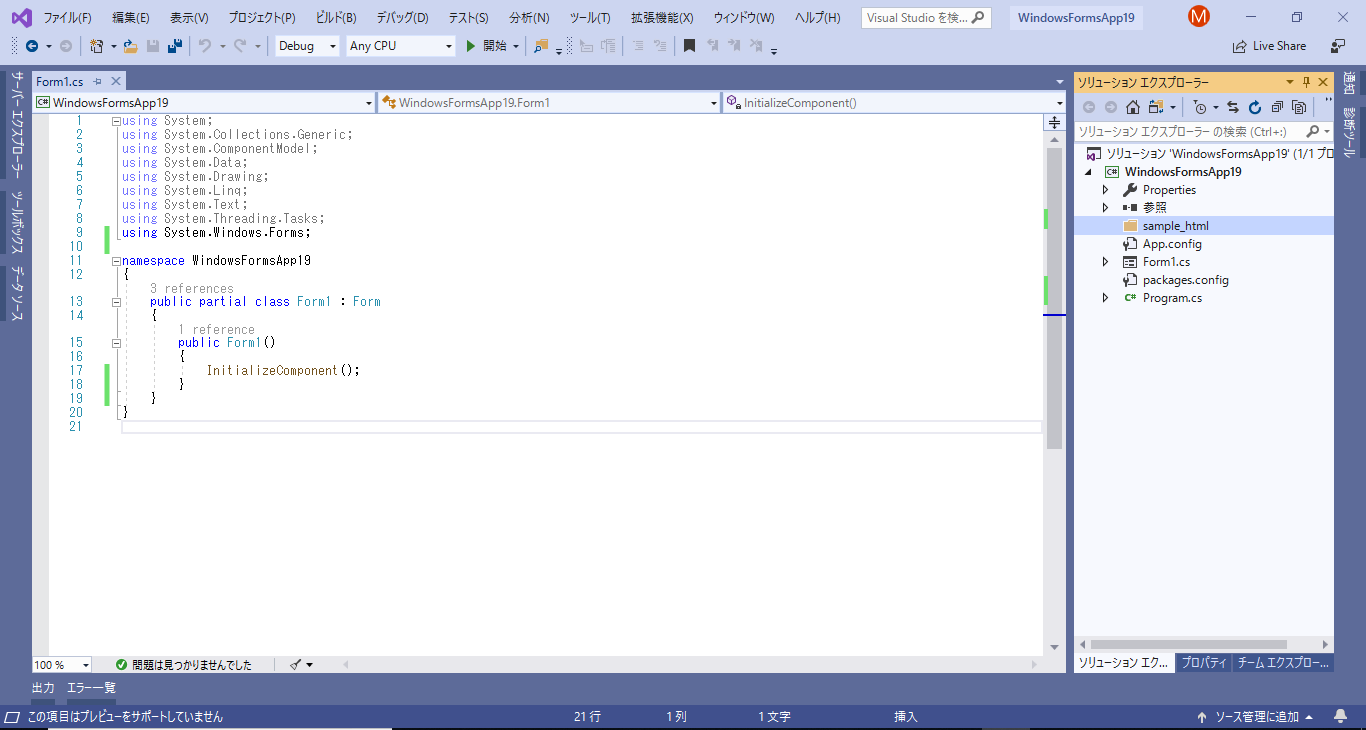
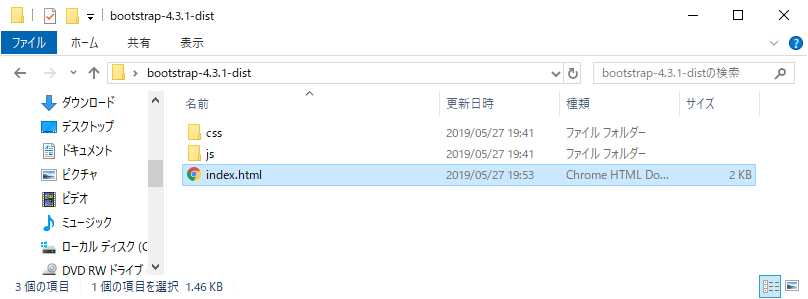
3.ここに用意したBoostrapのサンプルHTMLをコピーします。
↓
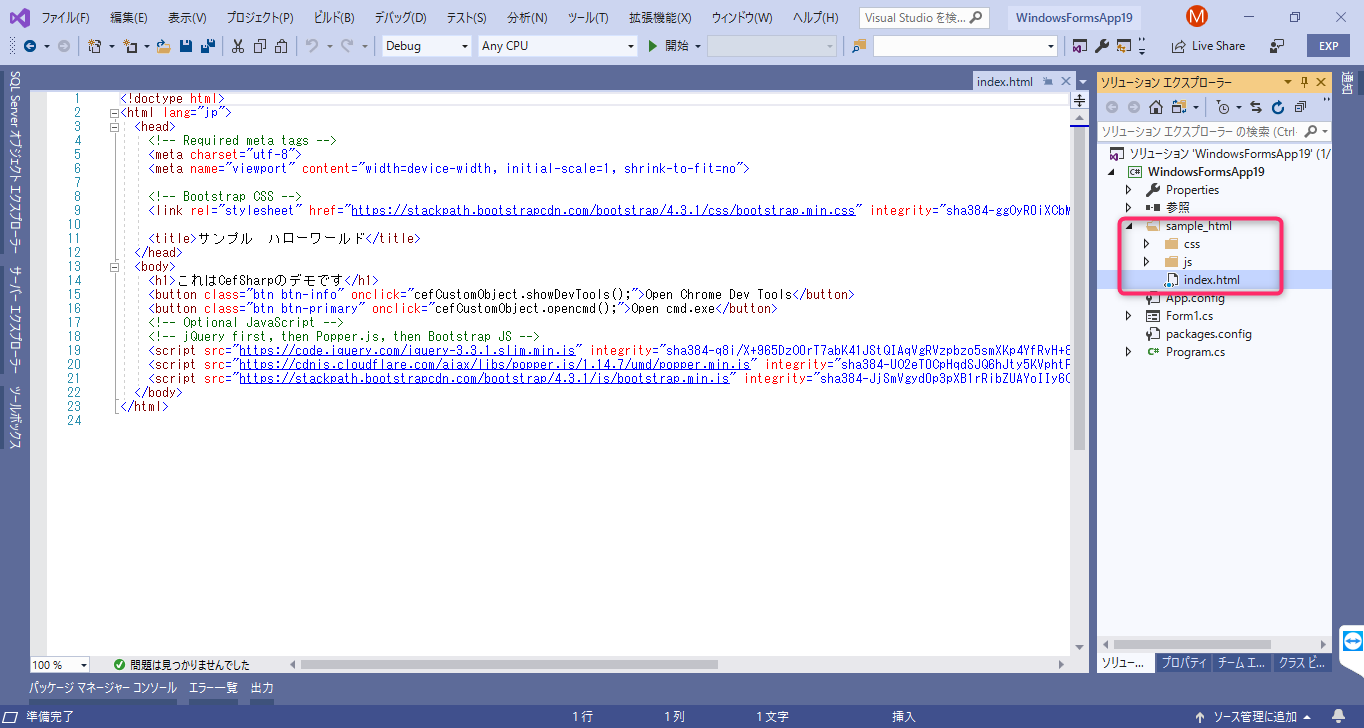
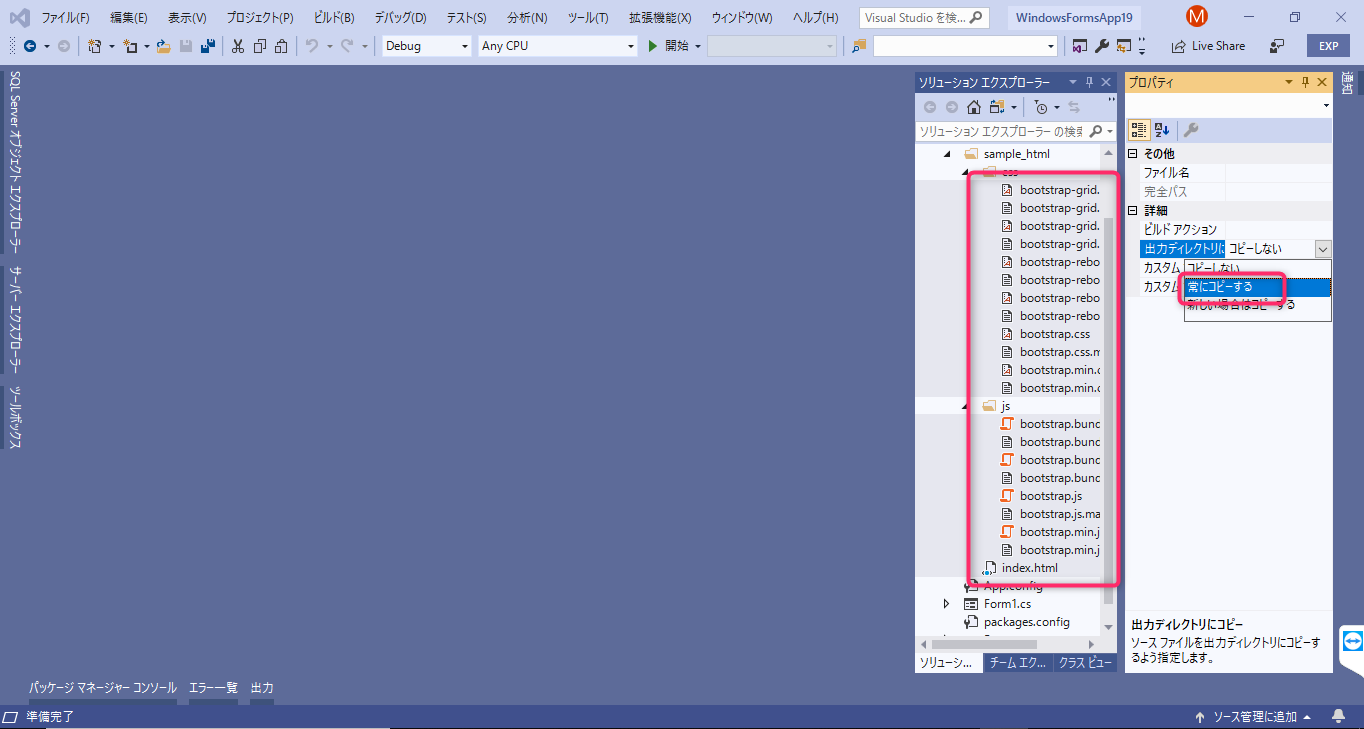
4.コピーしたサンプルHTMLの全ファイルを選択し、プロパティで「常にコピーする」に変更します。
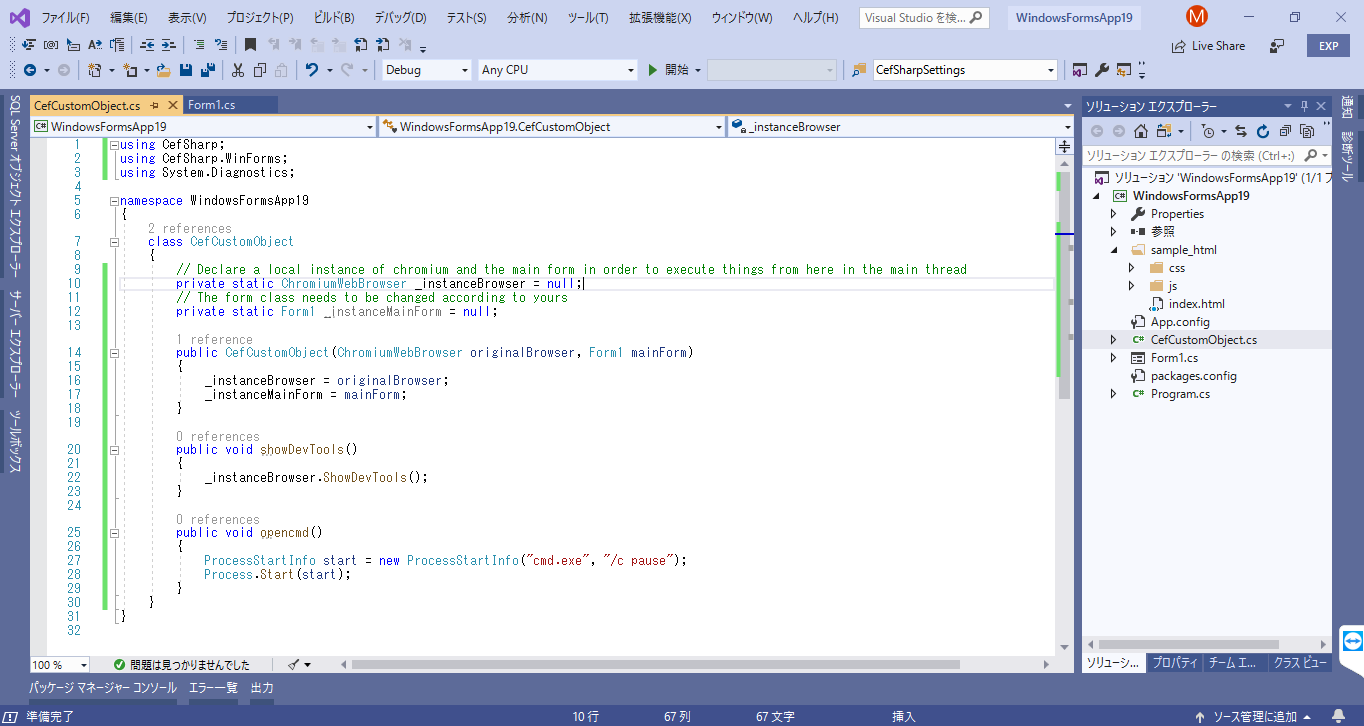
5.クラス(CefCustomObject.cs)を追加します。
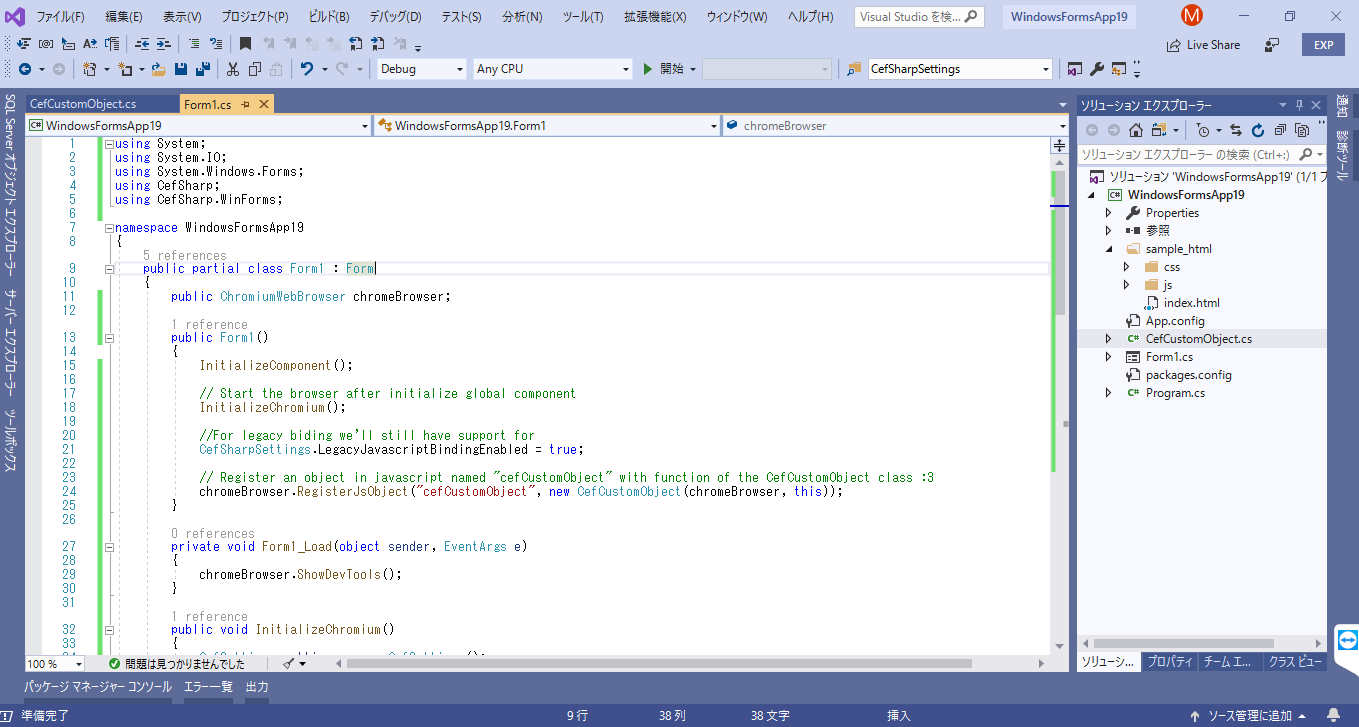
6.フォーム(Form1.cs)を変更します。
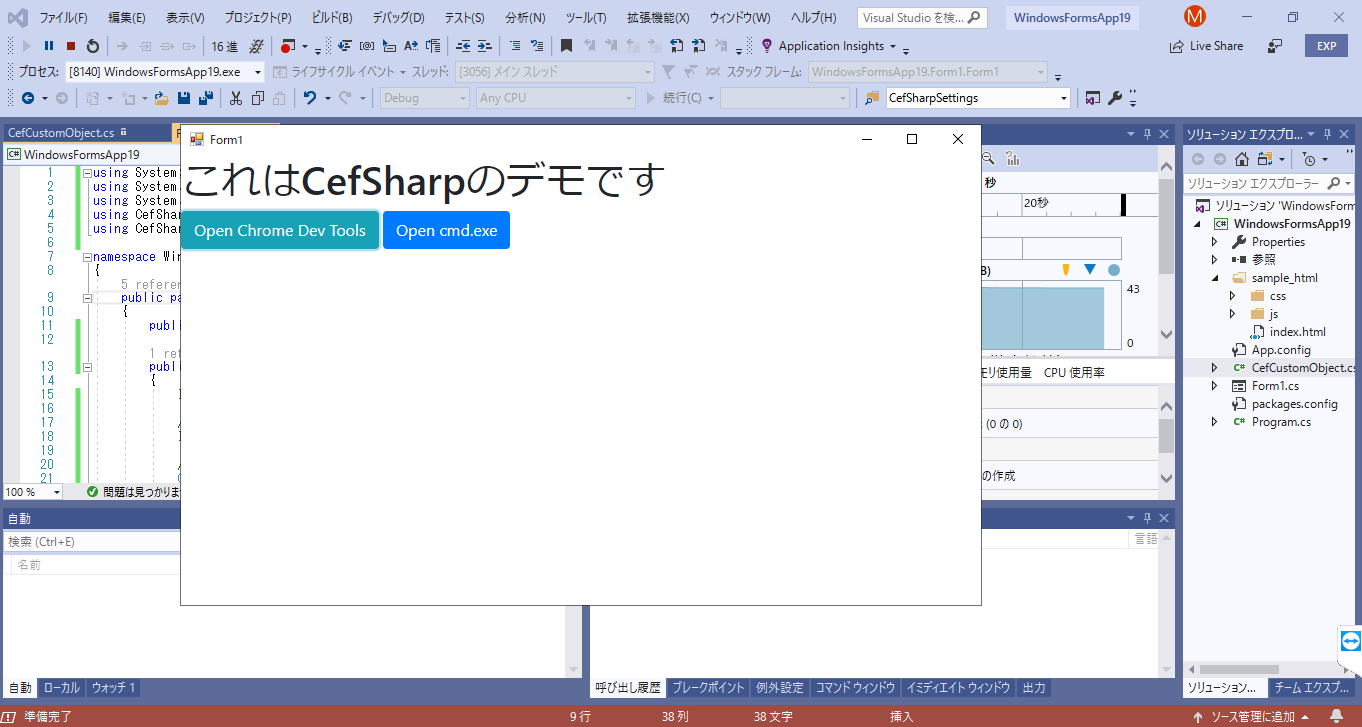
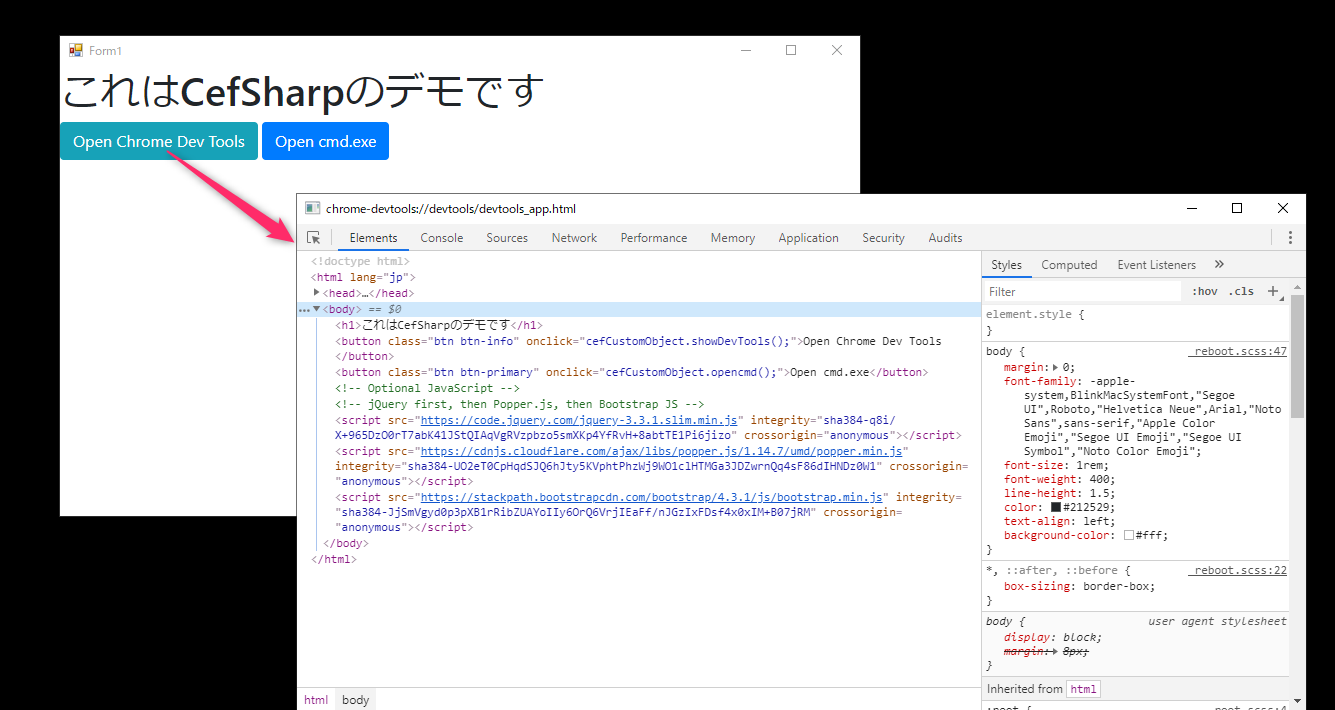
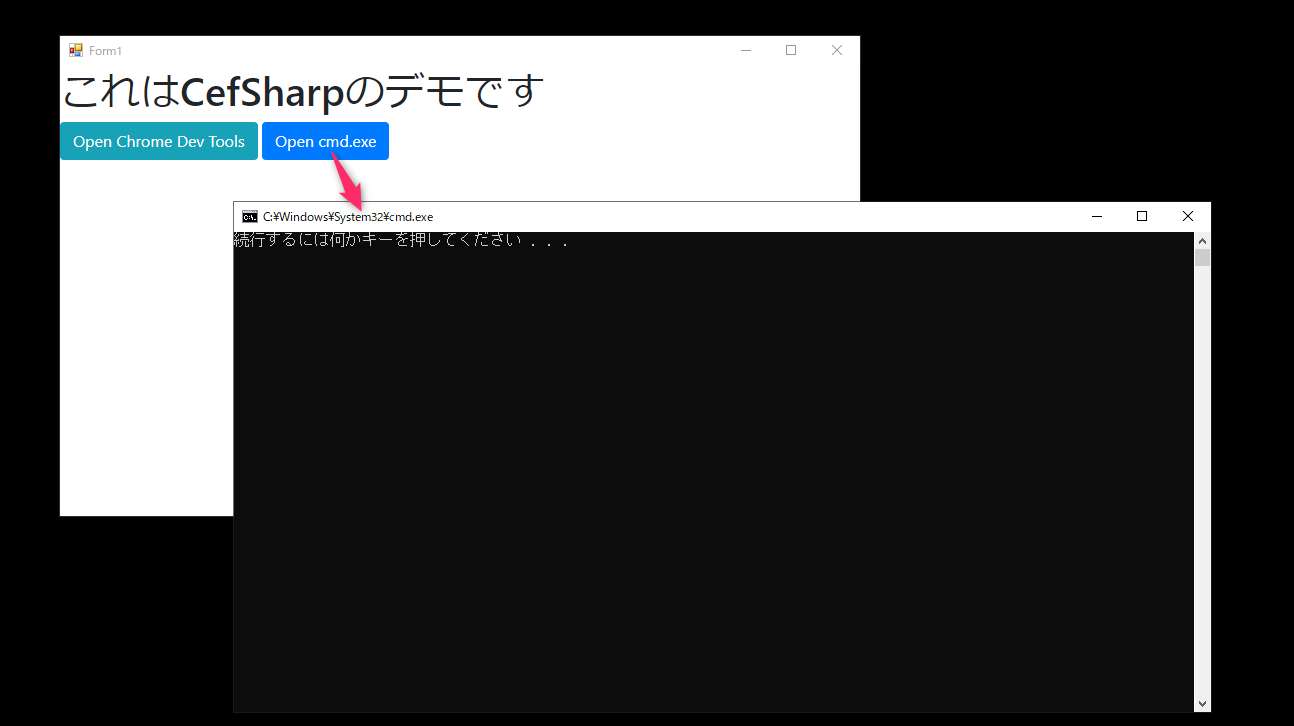
7.ここまで出来たら、実行してみます。緑色ボタンをクリックするとChrome Dev Tools が、青色ボタンをクリックするとコマンドプロンプト(cmd.exe)が、それぞれ起動します。
【サンプルHTML】
<!doctype html>
<html lang="jp">
  <head>
    <!-- Required meta tags -->
    <meta charset="utf-8">
    <meta name="viewport" content="width=device-width, initial-scale=1, shrink-to-fit=no">

    <!-- Bootstrap CSS -->
    <link rel="stylesheet" href="https://stackpath.bootstrapcdn.com/bootstrap/4.3.1/css/bootstrap.min.css" integrity="sha384-ggOyR0iXCbMQv3Xipma34MD+dH/1fQ784/j6cY/iJTQUOhcWr7x9JvoRxT2MZw1T" crossorigin="anonymous">

    <title>サンプル ハローワールド</title>
  </head>
  <body>
    <h1>これはCefSharpのデモです</h1>
    <button class="btn btn-info" onclick="cefCustomObject.showDevTools();">Open Chrome Dev Tools</button>
    <button class="btn btn-primary" onclick="cefCustomObject.opencmd();">Open cmd.exe</button>
    <!-- Optional JavaScript -->
    <!-- jQuery first, then Popper.js, then Bootstrap JS -->
    <script src="https://code.jquery.com/jquery-3.3.1.slim.min.js" integrity="sha384-q8i/X+965DzO0rT7abK41JStQIAqVgRVzpbzo5smXKp4YfRvH+8abtTE1Pi6jizo" crossorigin="anonymous"></script>
    <script src="https://cdnjs.cloudflare.com/ajax/libs/popper.js/1.14.7/umd/popper.min.js" integrity="sha384-UO2eT0CpHqdSJQ6hJty5KVphtPhzWj9WO1clHTMGa3JDZwrnQq4sF86dIHNDz0W1" crossorigin="anonymous"></script>
    <script src="https://stackpath.bootstrapcdn.com/bootstrap/4.3.1/js/bootstrap.min.js" integrity="sha384-JjSmVgyd0p3pXB1rRibZUAYoIIy6OrQ6VrjIEaFf/nJGzIxFDsf4x0xIM+B07jRM" crossorigin="anonymous"></script>
  </body>
</html>
【クラス(CefCustomObject.cs)】
using CefSharp;
using CefSharp.WinForms;
using System.Diagnostics;

namespace WindowsFormsApp19
{
    class CefCustomObject
    {
        // Declare a local instance of chromium and the main form in order to execute things from here in the main thread
        private static ChromiumWebBrowser _instanceBrowser = null;
        // The form class needs to be changed according to yours
        private static Form1 _instanceMainForm = null;

        public CefCustomObject(ChromiumWebBrowser originalBrowser, Form1 mainForm)
        {
            _instanceBrowser = originalBrowser;
            _instanceMainForm = mainForm;
        }

        public void showDevTools()
        {
            _instanceBrowser.ShowDevTools();
        }

        public void opencmd()
        {
            ProcessStartInfo start = new ProcessStartInfo("cmd.exe", "/c pause");
            Process.Start(start);
        }
    }
}
【フォーム(Form1.cs)】
using System;
using System.IO;
using System.Windows.Forms;
using CefSharp;
using CefSharp.WinForms;

namespace WindowsFormsApp19
{
    public partial class Form1 : Form
    {
        public ChromiumWebBrowser chromeBrowser;

        public Form1()
        {
            InitializeComponent();

            // Start the browser after initialize global component
            InitializeChromium();

            //For legacy biding we'll still have support for
            CefSharpSettings.LegacyJavascriptBindingEnabled = true;

            // Register an object in javascript named "cefCustomObject" with function of the CefCustomObject class :3
            chromeBrowser.RegisterJsObject("cefCustomObject", new CefCustomObject(chromeBrowser, this));
        }

        private void Form1_Load(object sender, EventArgs e)
        {
            chromeBrowser.ShowDevTools();
        }

        public void InitializeChromium()
        {
            CefSettings settings = new CefSettings();

            // Note that if you get an error or a white screen, you may be doing something wrong !
            // Try to load a local file that you're sure that exists and give the complete path instead to test
            // for example, replace page with a direct path instead :
            // String page = @"C:\Users\SDkCarlos\Desktop\afolder\index.html";

            String page = string.Format(@"{0}\sample_html\index.html", Application.StartupPath);

            if (!File.Exists(page))
            {
                MessageBox.Show("Error The html file doesn't exists : " + page);
            }

            // Initialize cef with the provided settings
            Cef.Initialize(settings);

            // Create a browser component
            chromeBrowser = new ChromiumWebBrowser(page);

            // Add it to the form and fill it to the form window.
            this.Controls.Add(chromeBrowser);
            chromeBrowser.Dock = DockStyle.Fill;

            // Allow the use of local resources in the browser
            BrowserSettings browserSettings = new BrowserSettings();
            browserSettings.FileAccessFromFileUrls = CefState.Enabled;
            browserSettings.UniversalAccessFromFileUrls = CefState.Enabled;
            chromeBrowser.BrowserSettings = browserSettings;
        }

        private void Form1_FormClosing(object sender, FormClosingEventArgs e)
        {
            Cef.Shutdown();
        }
    }
}